Introduction
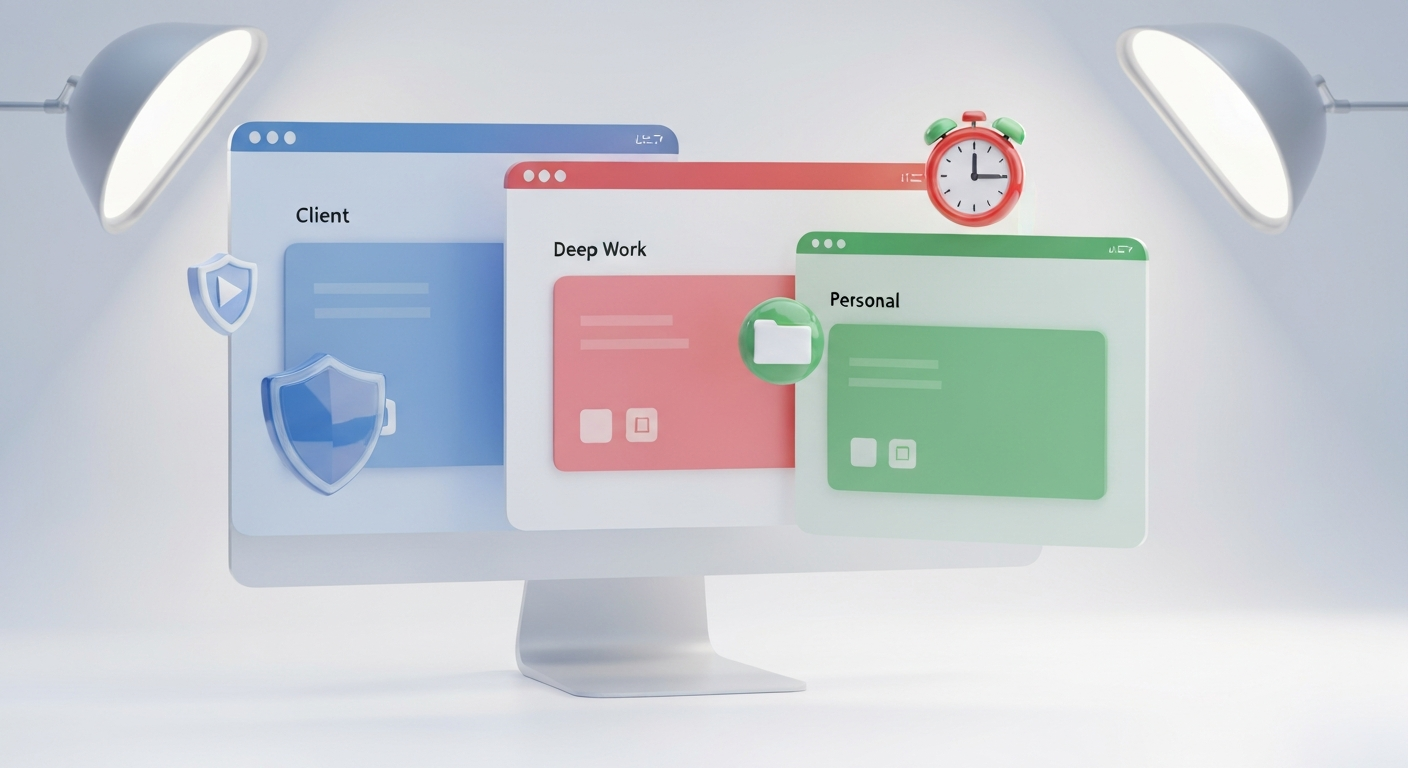
In today’s browser-driven workflows, one profile rarely fits all tasks. Client work, deep focus sessions, and personal browsing demand different privacy levels, distraction controls, and extension sets. As someone who tests, compares, and analyzes browser tools daily at EpicWebTool, I’ve found that using three distinct Chrome profiles—Client, Deep Work, and Personal—paired with a tailored extension stack, can dramatically improve focus, security, and efficiency. This article shows how to structure those profiles, which extensions to include in each, and provides a practical vetting checklist to avoid low-quality or risky tools.
Section 1. Why a Profile-Based Extension Strategy Matters
Modern browser workflows often spill across contexts. Whether you are a marketer evaluating ad tech, a developer debugging a feature, or a founder reviewing metrics, your browser handles diverse data. Extensions gain privileged access to data, tabs, and network requests; mixing these tasks in a single profile can leak data, invite distractions, and create fragile setups.
A profile-per-workspace approach isolates cookies, local storage, and permissions. This ensures that a client’s data stays separate from personal browsing and that deep-work sessions remain free of notifications. The result is clearer boundaries, faster startup times, and easier compliance with security and privacy expectations.
Section 2. Tools, Strategies, and How to Use Them
Profiles and Basics
- Create three distinct Chrome profiles: Client, Deep Work, and Personal. Sign in with separate Google accounts or use one Google account with local profile isolation. Rename each profile clearly and pin the launcher icons to your taskbar for quick switching.
- Configure Syncing: In each profile, enable only the necessary syncing and disable cross-profile data sharing. Use profile-specific bookmarks and extensions to prevent accidental data transfer.
- Layer Controls: Customize focus and privacy settings per profile. Use the Client profile for collaboration, Deep Work for uninterrupted tasks, and Personal for general browsing.
Extension Stacks by Profile
Client Work: Secure Collaboration
- Password Manager: Use per-profile vaults to share credentials only when needed.
- Tab and Session Manager: Capture project sets (e.g., “Q2 Campaign”) to restore them later.
- Clip-and-Note Tools: Use web clippers to capture sources, meeting notes, and snippets directly into your workflow.
- Lightweight Privacy Guard: A tracker blocker focused on a bounded surface to avoid over-blocking essential client sites.
Deep Work: Maximum Concentration
- Focus Timer: Use a Pomodoro-style extension to regulate work sprints.
- Tab Suspender: Minimize RAM usage during long research sessions.
- Distraction Blockers: Use tools that whitelist only essential work sites.
- Keyboard Shortcut Manager: Set quick actions to switch profiles or launch projects instantly.
Personal Browsing: Privacy and Low Friction
- Privacy Tools: Cookie managers and site-level permission controls.
- Content Blockers: Ad blockers with easy toggles for flexible browsing.
- Data Tools: Simple scraping or receipt-tracking tools for personal finances and shopping.
Practical Usage Tips
- Stay Lean: Treat each profile as a purpose-built workspace. Avoid “one-size-fits-all” toolkits that bloat memory.
- Use Shortcuts: Map per-profile shortcuts (e.g., Ctrl+Shift+C for Client) for rapid switching.
- Perform Audits: Regularly review your extensions. Remove anything unused for more than two weeks to maintain performance.
Section 3. Real-World Workflows with the Profile Stack
Marketing Research Workflow (Client Work)
Start a research session in the Client profile with a dedicated tab group. Use a tab manager to assemble core sources like reports and competitor dashboards. Save the group as a snapshot, clip key passages into your project brief, and store customer portal credentials in your dedicated password manager. When finished, collapse the group to keep the workspace clean.
Developer Productivity Workflow (Deep Work)
Launch a focused sprint with a timer and a whitelist of allowed sites. Open code repositories and documentation, then suspend nonessential tabs to reduce memory pressure. Use a snippets extension to stash common code templates. When you need a break, toggle off the whitelist with a single click.
Research and Organization
In Research mode, combine a tab manager with a bibliography tool. Tag and save sources by project, then export a reading list. For general organization, maintain a core set of “canonical” extensions and rotate in temporary tools only as needed for specific projects. Create a habit of monthly audits to clean data caches and verify permissions.
Section 4. Best Practices, Risks, and Vetting
Best Practices
- Start lean with three profiles and clear naming conventions.
- Separate credentials and avoid auto-sign-in across different profiles.
- Use per-profile bookmarks and session exports to back up your workspace state.
Risks and Common Mistakes
- Permissions Sprawl: Avoid extensions requesting broad data access without justification.
- Data Leaks: Confirm what is stored locally versus in the cloud to prevent cross-profile contamination.
- Resource Overload: Too many extensions slow down your browser; regularly prune your list.
Practical Extension Vetting Checklist
- Purpose Clarity: Does it solve a recurring need for this specific profile?
- Publisher Trust: Is the developer reputable with recent updates?
- Permissions Audit: Are the requested permissions scoped only to what is necessary?
- Data Handling: What data is collected, and can you export it?
- Open-Source Options: Is there a transparent, open-source alternative?
- Update Cadence: Is there an active issue tracker and frequent updates?
- Review Signals: Are there recent red flags regarding security or reliability?
- Resource Impact: Does it negatively affect memory or tab stability?
- Exit Plan: Can you remove it without losing essential data?
Conclusion
The right Chrome profile stack transforms how you work online by creating sharper boundaries and fewer distractions. By pairing focused profiles with purpose-built extension stacks and a disciplined vetting process, you gain predictable workflows and stronger security. With these structured steps, you can turn browser complexity into a repeatable professional advantage.