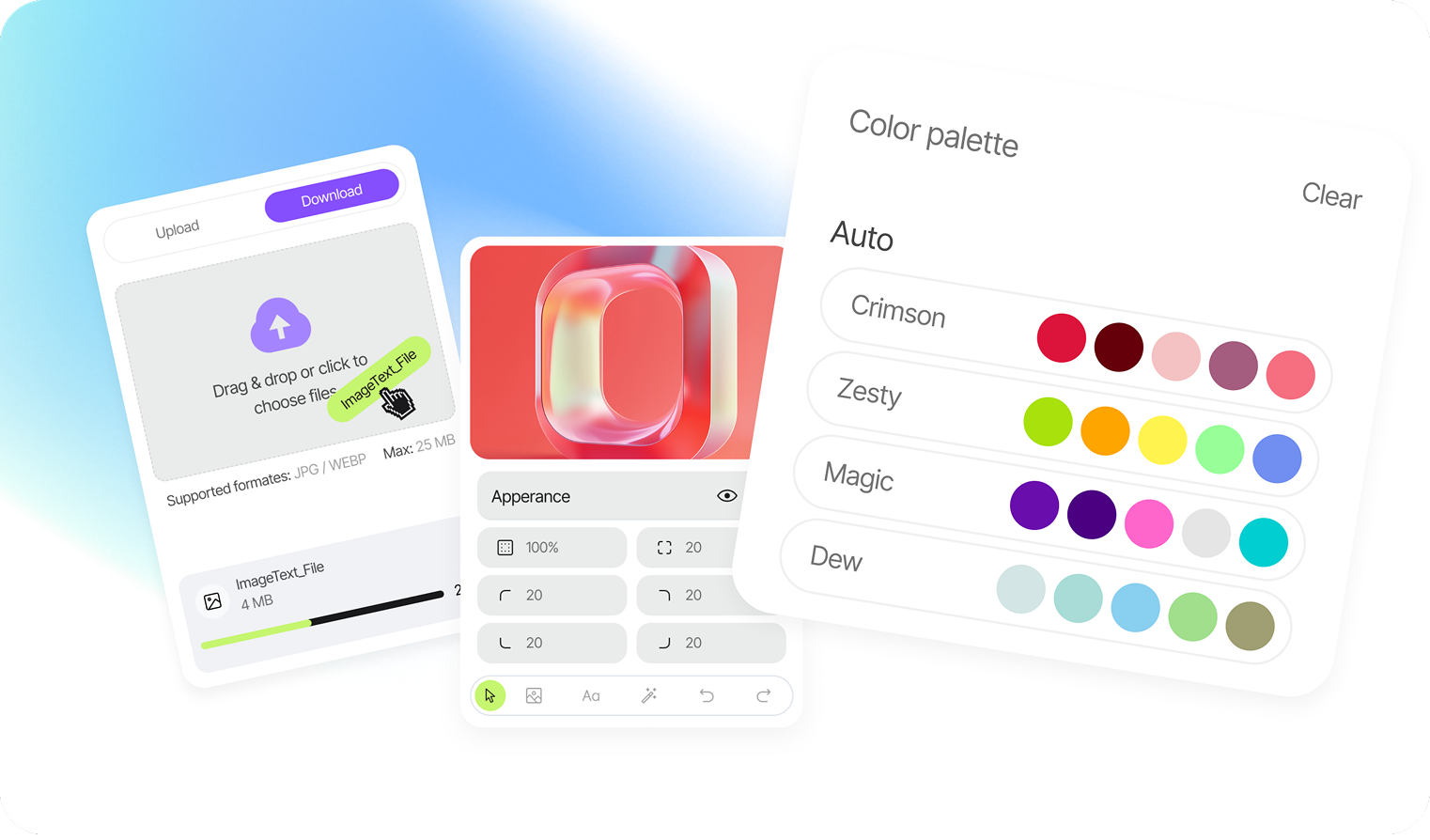
Color Picker Chrome Extension
Have you ever browsed a website and stumbled upon a color scheme so perfect you just had to use it in your own designs? Maybe it’s a specific shade of “electric blue” or a subtle “warm gray” that you can’t quite replicate manually.
In the past, you might have taken a screenshot, opened Photoshop, and used the eyedropper tool there. That takes too much time.
Today, we’ll show you how to instantly identify, copy, and save any color from your browser using our Color Picker Chrome Extension. Whether you are a UI/UX designer, a frontend developer, or just a creative enthusiast, this guide will speed up your workflow.
Why Use a Browser Color Picker?
Speed: Get the color code in 2 clicks.
Accuracy: Get the exact Pixel-perfect Hex or RGB code..
Convenience: No need to leave your browser or open heavy software.
Step 1: Install and Pin the Extension
Pro Tip: Once installed, click the “Puzzle” icon in the top right corner of Chrome and click the Pin icon next to our Color Picker. This keeps the tool always visible for instant access.
First things first. If you haven’t already, add the extension to your browser. [Button: Add to Chrome – Free]
Step 2: Activate the Eyedropper
Navigate to the webpage where you found the color you want to capture.
1. Click on the Color Picker icon in your toolbar.
2. Select “Pick Color” (or simply click the large eyedropper button).
3. You will notice your cursor change into a magnifying glass or a crosshair. This means the tool is active.
Step 3: Hover and Snap
Move your mouse over the element you want to analyze.
Pixel Precision: As you hover, you’ll see a zoomed-in preview window. This helps you select the exact pixel you need, even if it’s a thin border or small text.
Click to Capture: Once the crosshair is on the right color, simply click the left mouse button.
Step 4: Copy Your Code (Hex, RGB, HSL)
After you click, the extension panel will reopen (or a popup will appear) displaying the captured color. You will see the color codes in various formats:
HEX: (e.g., #FF5733) – Best for web design and CSS.
RGB: (e.g., rgb(255, 87, 51))-Often used in digital graphics.
Simply click the “Copy” icon next to the code you need. It is now saved to your clipboard and ready to be pasted into Figma, Photoshop, or your code editor.
Bonus: Using the Color History
Did you accidentally close the popup? Don’t worry. Our extension automatically saves your recently picked colors in the History tab. You can go back anytime to retrieve a color palette you found days ago.