Chrome extensions can turn a browser into a serious work environment: one tab for research, one for writing, one for task capture, and a few tools that remove repetitive clicks. Used well, they save time; used badly, they become clutter, a security risk, and a major distraction. The goal is not to install more extensions, but to build a small, reliable stack that supports real work. In this guide, we will explore how to choose useful tools, review their risks, and arrange them into workflows that reduce context switching instead of creating it.
Why Browser Workflows Break Down
Most professionals now do deep work inside the browser. Marketers live in dashboards, developers in docs and issue trackers, researchers in sources and notes, designers in web apps, and founders in a mix of email, analytics, and internal tools. The browser has essentially become the operating system of work.
That is exactly why extension sprawl happens. People install a new tool for every small pain point: screenshot capture, tab management, grammar help, link saving, CRM shortcuts, password fills, note capture, and more. Each one may be useful on its own, but together they add permission prompts, background processes, UI clutter, and decision fatigue. A better approach is to treat extensions like infrastructure. Every tool should have a clear job, a narrow scope, and a justified reason to stay installed.
Choose Tools by Workflow, Not by Feature List
Start by grouping extensions into categories based on what they remove from your day. The strongest stacks usually feature one or two tools per category to avoid overlap and confusion.
- Capture tools: screenshots, clipping, annotation, quick notes.
- Navigation tools: tab managers, workspace switchers, command palettes.
- Writing tools: grammar, text expansion, citation capture.
- Research tools: source saving, page summaries, highlight sync.
- Security tools: password managers, privacy blockers, session protection.
When evaluating an extension, check three things: What task does it remove? How often will I use it? What access does it require? If the benefit is occasional and the permissions are broad, the extension probably does not earn a place in your stack.
Build a Practical Stack for Daily Work
A secure stack is usually built around a few dependable tools that fit naturally into your daily routine. The best extensions disappear into the background because they seamlessly match how you already work.
| Extension Category | Primary Purpose | Recommended Limit |
|---|---|---|
| Security | Login management & privacy | 1-2 tools |
| Navigation | Preserving workspaces & tabs | 1 tool |
| Capture | Screenshots & highlighting | 1-2 tools |
| Utility | Role-specific tasks (e.g., coding) | 1 tool |
Keep your stack small enough that you know exactly what each extension does. If two tools overlap heavily, remove one. If an extension only helps once a month, consider using a built-in browser feature instead.
Example Workflow: Research to Draft Without Losing Context
Imagine a researcher or content strategist gathering material for a report. A streamlined workflow prevents the common trap of keeping 30 tabs open “just in case.”
- Open source articles in a dedicated browser profile or workspace.
- Use a tab manager to group sources by theme.
- Capture highlights or screenshots from important pages.
- Save citations or notes into one centralized system.
- Use a distraction blocker to keep the reading environment clean.
- When it is time to write, switch to a separate workspace with only the draft, notes, and references.
Instead of chaos, the browser becomes a pipeline: find, capture, organize, write. Each extension has a defined role, heavily reducing context switching. This pattern works just as effectively for marketers tracking campaigns or developers debugging code.
Security, Maintenance, and Auditing Risks
The biggest mistake professionals make is installing extensions as if they were harmless browser furniture. They are not. Extensions can read page content, interact with sites, and sometimes access data you would never blindly hand over to a random web application.
Use this checklist before installing any new tool:
- Review the permission requests carefully.
- Prefer extensions with a clear publisher identity and active maintenance.
- Look for recent updates and a stable user base.
- Avoid tools that ask for broad access without a strong, functional reason.
- Remove anything you have not used in the last month.
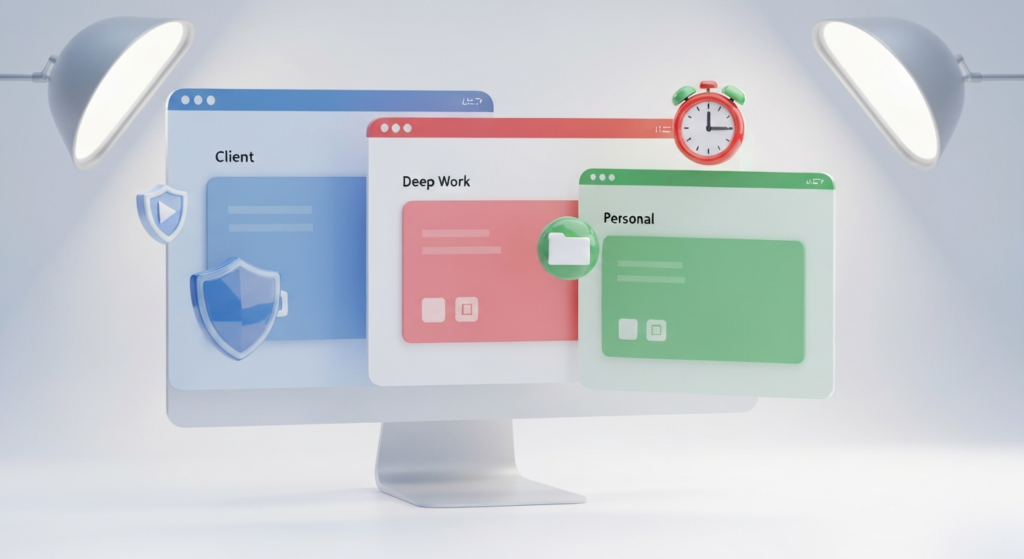
It also helps to separate personal and work browsing by utilizing different Chrome profiles. That keeps work extensions from bleeding into personal browsing and makes it significantly easier to audit what is currently installed.
A secure Chrome extension stack is not about having the most tools. It is about choosing the few that meaningfully improve workflow, keeping permissions under control, and organizing the browser so it supports focus instead of interrupting it. At EpicWebTool, we regularly explore and review browser tools for professionals who want that balance of speed, control, and security.
Frequently Asked Questions (FAQ)
How many Chrome extensions should I install for work?
Aim for a minimalist approach, typically keeping your active stack between 4 to 6 extensions. Choose one reliable tool per major workflow category, such as one for tab management, one for passwords, and one for capturing notes.
How do I know if a Chrome extension is secure?
Always verify the publisher’s identity, read user reviews, check for recent updates, and heavily scrutinize the requested permissions. If a simple text formatter asks for access to all your website data, it poses a security risk and should be avoided.
Can having too many extensions slow down my browser?
Yes. Every active extension consumes memory and processing power as background processes. Keeping your extension stack small and regularly disabling unused tools will ensure your browser runs smoothly and efficiently.