Chrome extensions can turn a plain browser into a focused work environment, but they can also become a mess of overlapping tools, slow tabs, and unnecessary risk. For professionals who spend most of the day in the browser, the challenge is not finding more extensions—it is choosing the right ones and keeping the setup secure, fast, and easy to maintain. In this guide, I’ll walk through a practical way to evaluate extensions, test them in real workflows, and manage them without losing control of your browser.
Creating an Intentional Chrome Setup
Start With the Problem
Most people install extensions reactively. They need a screenshot tool, a note clipper, a password helper, then a tab manager, then another productivity add-on that promises to fix the last one. After a while, the browser becomes crowded and unpredictable.
A better approach is to map your workflow first. Ask yourself: where do I lose time every day? Common pain points include repetitive copying, tab overload, switching between accounts, weak research organization, and manual formatting. Extensions are most useful when they remove one of those frictions cleanly.
For example, a marketer may need fast page capture and link analysis. A developer may need API testing, JSON formatting, and environment switching. A researcher may care more about citation capture, text extraction, and tab grouping. The best extension is the one that fits a repeated task, not a one-time inconvenience.
Build a Core Productivity Stack
A secure Chrome setup usually works best when it is built in intentional layers:
- Core productivity tools: Tab management, clipboard utilities, screenshots, task capture, and password managers.
- Specialized workflow tools: SEO utilities, developer tools, reading tools, and scheduling helpers.
- Security and control: Extension permission review, site-specific access, and browser profile separation.
| Stack Layer | Common Tool Types | Primary Goal |
|---|---|---|
| Core Productivity | Tab managers, password helpers | Reduce daily friction |
| Specialized Workflow | Dev tools, SEO utilities | Automate specific tasks |
| Security & Control | Profile managers, permission tools | Protect privacy and data |
When testing an extension, do not judge it only by the first impression. Use it on a real task for a few days. Check three things: does it save time, does it behave consistently, and does it ask for more access than it needs? A tool that works well but requests broad access to every site may not be worth keeping. Prefer extensions that offer narrow permissions, clear documentation, frequent updates, and a small, focused feature set.
Practical Workflow Example
Imagine a researcher or content strategist preparing a report. A practical workflow looks like this:
- Use a tab manager to collect source pages into one session instead of leaving dozens of tabs open.
- Use a reader or text extraction extension to clean up long articles and remove clutter.
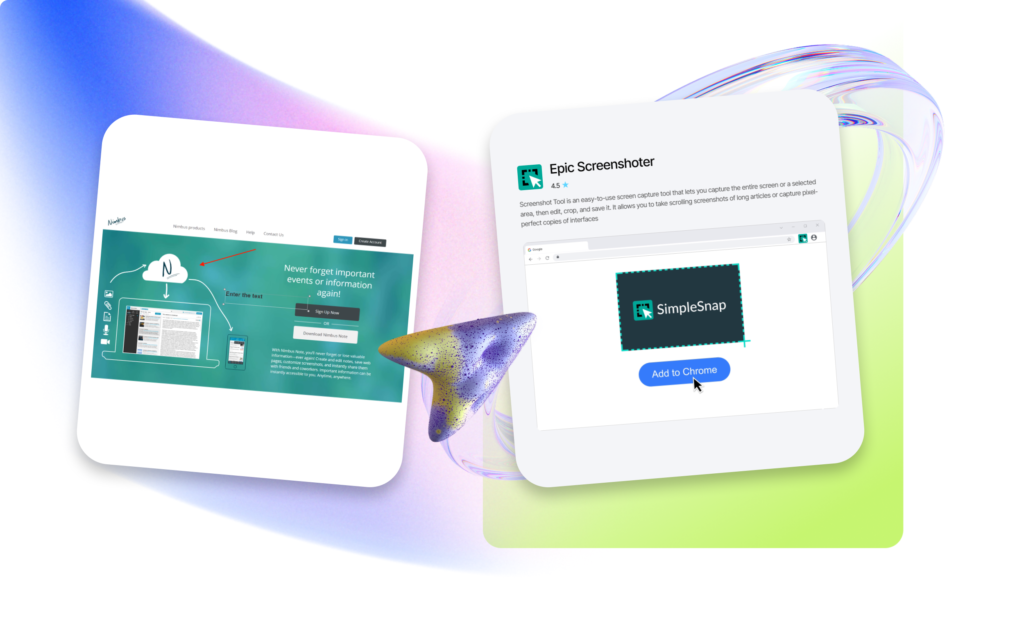
- Save highlights or clipped notes into a single system that can be reviewed later.
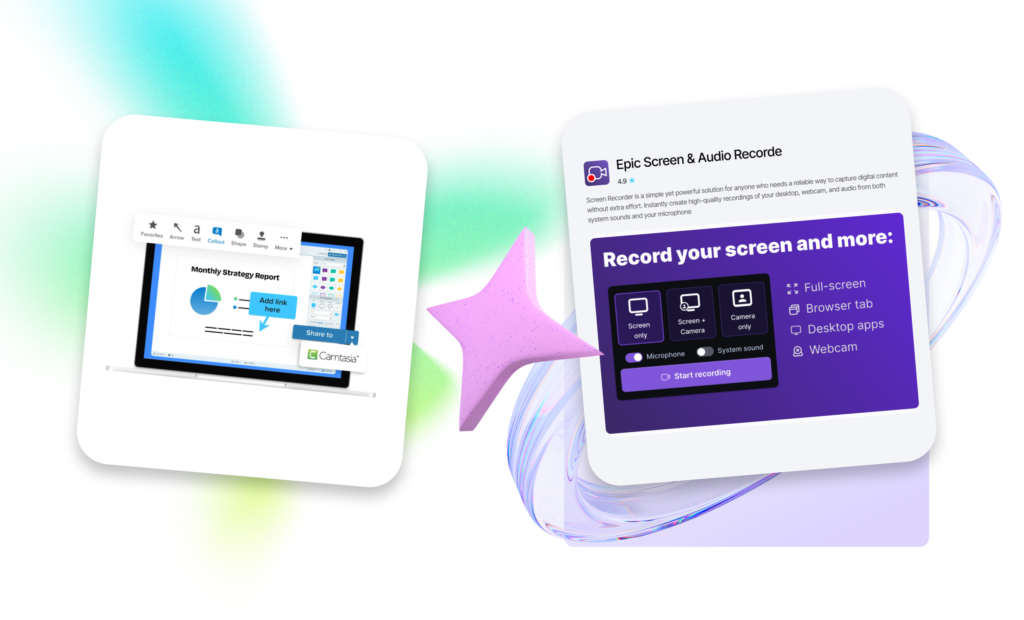
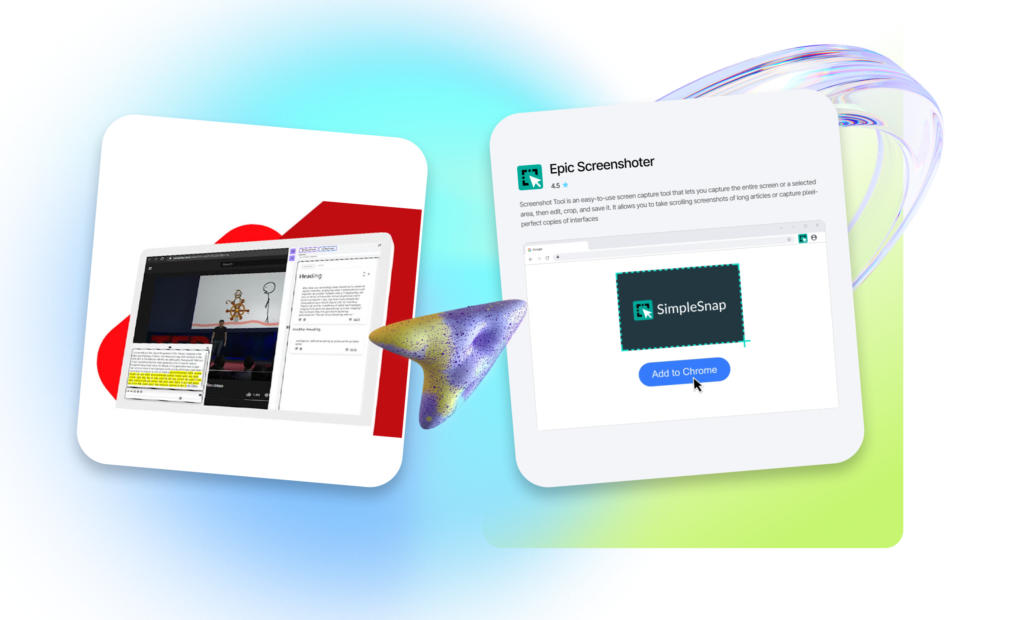
- Use a screenshot or annotation tool to capture charts, interface examples, or evidence.
- Finish by organizing everything into folders, tasks, or a writing draft.
This kind of setup reduces context switching. The browser stops acting like a pile of open pages and starts behaving like a working system. If one extension duplicates another, remove the duplicate. If a tool is only used once a month, consider using it on demand instead of keeping it active all the time.
Security, Maintenance, and Review
Extension Security and Best Practices
The biggest mistake is installing extensions too freely. Every extension is a small piece of software with access to your browsing environment, so review permissions carefully. Be especially cautious if an extension wants access to all sites, reads clipboard data, or injects content broadly across pages.
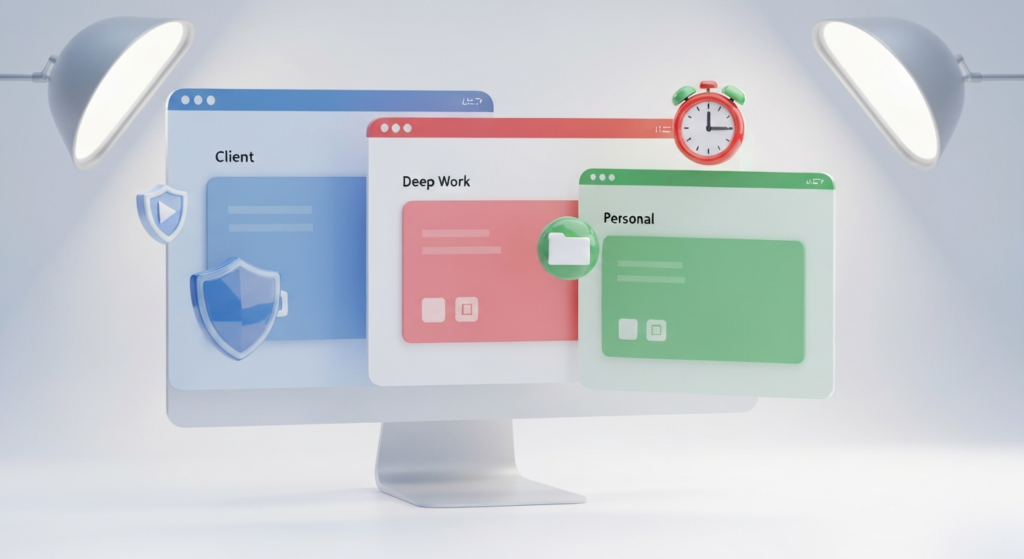
A safer maintenance routine includes reviewing installed extensions once a month, removing unused tools, keeping only one tool per job, and separating personal and work browsing into different Chrome profiles. It is also worth checking whether an extension still appears actively maintained. Broken tools can create security issues and workflow interruptions.
A high-productivity Chrome setup is not about loading the browser with as many extensions as possible. It is about choosing tools deliberately, testing them in real work, and keeping the stack clean over time. When extensions are selected for specific tasks and managed with discipline, they can save time, reduce friction, and make browser work much more efficient. At EpicWebTool, we regularly explore and review browser tools with that practical balance in mind: useful, secure, and built for real workflows.
Frequently Asked Questions
Why is my browser slow after installing extensions?
Installing too many extensions, especially those with overlapping features, can consume significant memory and background resources. Keeping a lean, intentional stack prevents browser slowdowns.
How do I check what permissions an extension has?
You can manage and review permissions in your Chrome extension settings. Always prioritize tools that request site-specific access rather than broad access to all websites.
Should I separate my personal and work extensions?
Yes, using different Chrome profiles for work and personal browsing is one of the best ways to maintain security, organize your tools, and keep your workspace focused.
How often should I review my browser tools?
A monthly audit is highly recommended. Remove extensions you no longer use and ensure the ones you keep are still receiving regular updates from their developers.