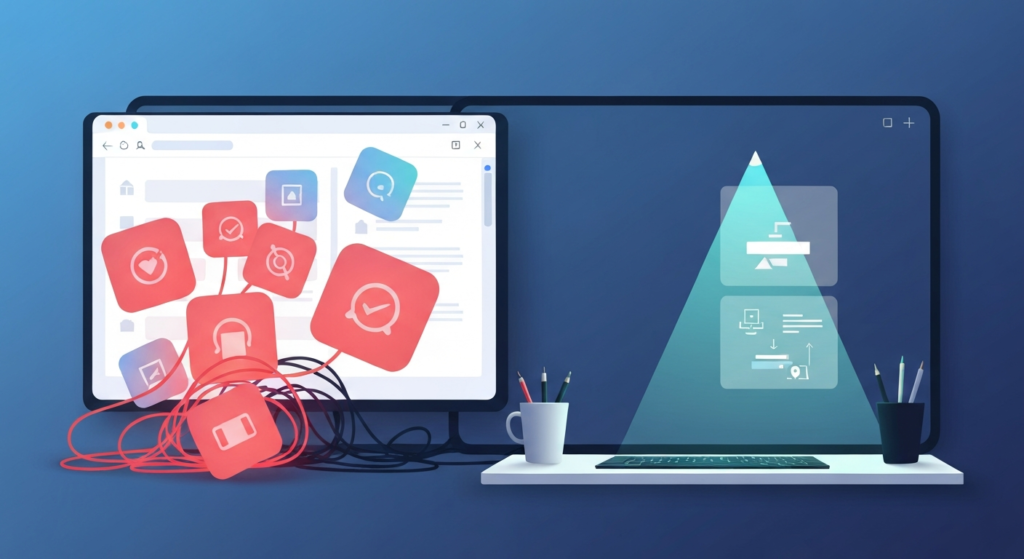
In browser productivity culture, it’s easy to assume that “better” means “more.” If an extension has additional buttons, dashboards, automations, and settings, professionals often believe it reduces friction everywhere at once. That belief is comforting—especially for remote workers juggling many tabs, tasks, and tools. But in practice, feature volume can quietly damage the very workflow it claims to improve: responsiveness, reliability, and cognitive clarity. When browser performance degrades, productivity doesn’t just slow down—it becomes harder to trust.
The Hidden Cost of Chrome Extension Feature Bloat
Myth vs. Reality
Myth: More features in a Chrome extension automatically make it better and therefore make you more productive.
Reality: More features usually make extensions slower, more complex, harder to maintain, and more likely to break under real-world conditions. Productivity gains don’t scale linearly with feature count; they scale with predictable behavior.
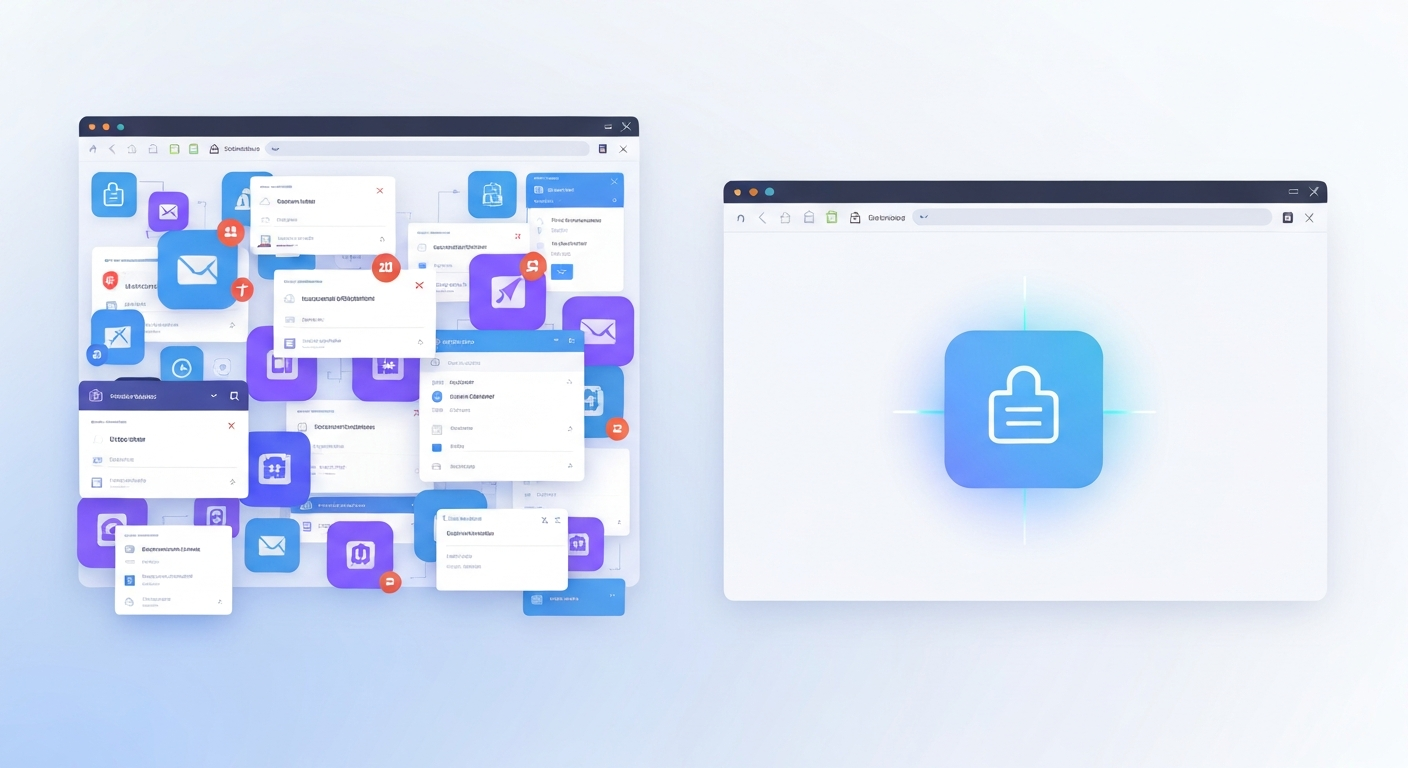
Consider typical work patterns: a marketer researching competitors, a developer scanning documentation, or a designer tagging references. These workflows rely on quick page loads, stable DOM interactions, and consistent behavior across sites. A feature-rich extension often adds more background scripts, content injections, and event listeners. Even when each feature seems “small,” the combined effect can increase CPU usage and create timing conflicts—especially on heavy pages like analytics dashboards or CMS admin panels.
Why More Features Lead to Less Productivity
To understand why feature-heavy tools backfire, we must look at how extensions function in a professional environment:
- Cumulative Performance Cost: Extensions run scripts that observe or modify page content. More features mean more scripts scanning for patterns, rewriting UI elements, or synchronizing data.
- Maintenance Overhead: Configuration states increase complexity. Mismatched settings across browsers or silent failures after a site redesign can erode user trust.
- DOM Fragility: UI enhancements like highlighters or auto-tagging depend on page structure. More assumptions lead to more failure points when a site updates its layout.
- Permission Risks: Broad features require broad permissions, increasing the risk surface for data handling and operational security.
| Myth | Reality | Practical Impact |
|---|---|---|
| More features = Speed | Cumulative script lag | Unresponsive browser UI |
| All-in-one is better | Higher maintenance | Frequent tool breakage |
| Broad permissions help | Increased risk surface | Security & privacy leaks |
Strategies for a Reliable Browser Workflow
Professionals should treat extensions like engineering components. A better approach involves evaluating features by failure mode rather than count. If an extension becomes active “everywhere,” it competes with the browser’s rendering pipeline. A lightweight extension that performs one job reliably is often more productive than a heavy extension that promises to solve everything.
For example, a “do-everything” extension that summarizes, translates, and auto-fills forms may rely on multiple observers. On complex web apps like a CRM, these observers can overlap, leading to jittery scrolling or missed content captures. Lars Erik Rydberg recommends a “one extension = one job” mindset to reduce cross-feature interference and simplify troubleshooting.
Common Mistakes Professionals Make
- Installing Too Many Extensions: Each one adds background logic and interaction surfaces, creating a combined slowdown.
- Trusting Popularity Over Fit: High download counts do not guarantee reliability for your specific professional workload.
- Overly Complex Automations: Creating chains like “capture → tag → summarize → sync” creates a workflow that is hard to verify when a step fails.
- Equating Customization with Control: Excessive settings often mean you are managing a system you do not fully understand.
In conclusion, feature count doesn’t guarantee value; predictable, low-interference behavior does. More features often mean more background work and more ways for the tool to fail. At EpicWebTool, we advocate for evaluating extensions like reliable software components: scope them, test them, and prefer tools that do fewer things consistently.
Frequently Asked Questions
Why do feature-rich extensions slow down my browser?
Every feature typically requires additional background scripts and event listeners. When an extension has too many features, it constantly scans and modifies the DOM, which consumes CPU and RAM, leading to noticeable lag.
How can I tell if an extension is affecting my productivity?
Monitor your browser performance using Chrome’s Task Manager. If a specific extension shows high CPU usage or if you notice jittery scrolling and delayed keyboard input on complex sites, the extension is likely causing friction.
Is it better to have one all-in-one tool or multiple small ones?
Generally, multiple lightweight, specialized tools are better. This “one job” approach prevents a single failure from breaking your entire workflow and makes it much easier to identify which tool is causing a problem.
What should I look for when choosing a new Chrome extension?
Prioritize extensions with narrow permissions, a clear and specific purpose, and a reputation for stability. Test the extension on your most important work sites before fully integrating it into your daily routine.