Automation is the promise professionals want from browser tools: fewer clicks, faster research, and less repetitive work. That belief is seductive because it maps cleanly to outcomes—time saved and throughput increased. Many teams also assume that the browser is “just a canvas,” so adding more automation layers should reliably speed everything up. In practice, however, browser workflows behave differently: each added layer can change performance, reliability, and even how work is structured.
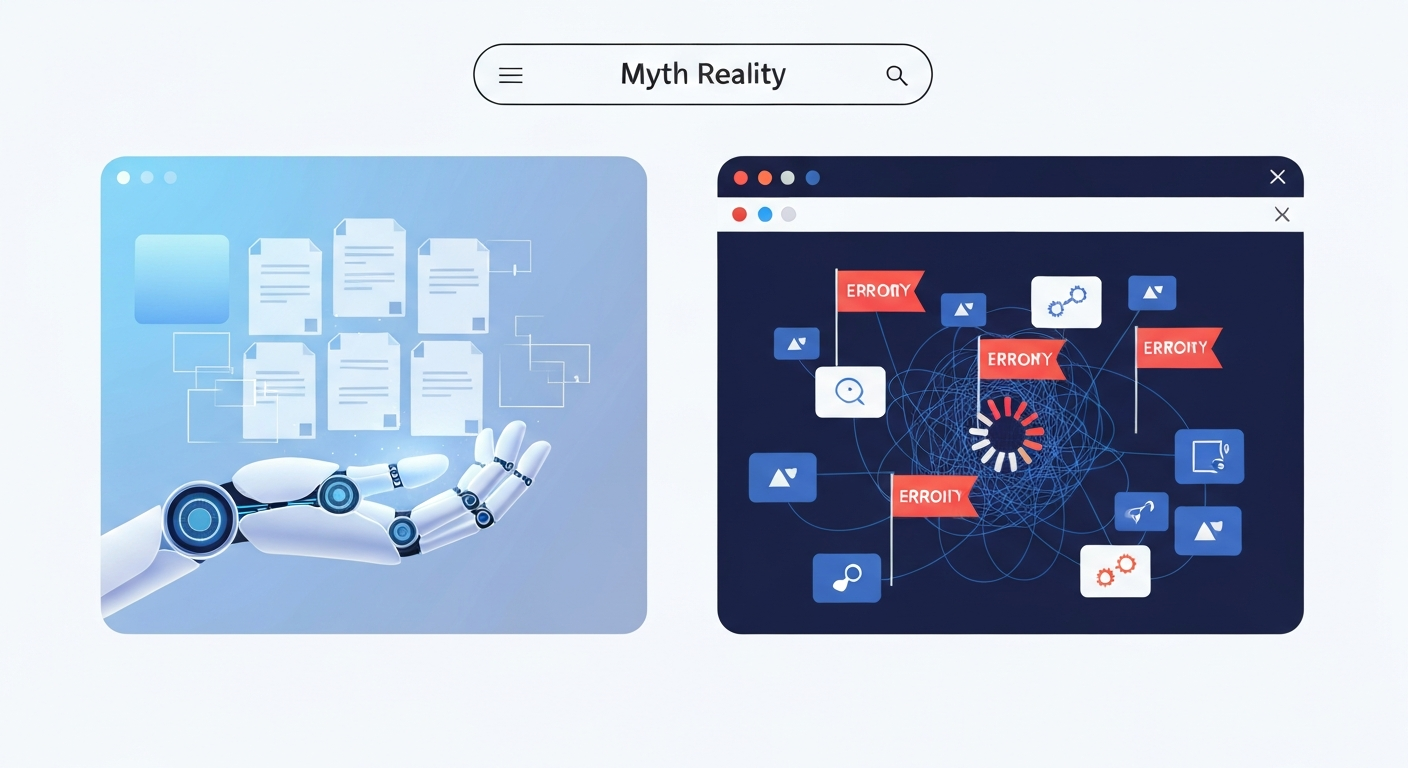
The Myth vs. Reality of Automation
The Myth
More automation (more scripts, more extension features, more “smart” triggers) always increases productivity.
The Reality
More automation often creates hidden costs: slower pages, brittle workflows, more maintenance, and more time spent debugging or re-teaching the tool.
The browser is not a neutral environment. Extensions run alongside your browsing session, intercept events, modify requests, inject UI elements, and sometimes store data or sync it across profiles. Even when an automation tool “works,” it can degrade the overall system in subtle ways—especially when multiple extensions compete to act on the same pages.
| Aspect | The Myth | The Reality | Practical Impact |
|---|---|---|---|
| Speed | Instant results | Resource heavy | Browser lag |
| Reliability | Set and forget | Brittle logic | Constant debugging |
| Workload | Zero effort | High maintenance | Delayed rework |
A common pattern looks like this: a marketer adds three extensions to automate research and reporting, then another for exporting, and another for tagging. The first week feels amazing. By week three, performance is inconsistent: some pages load slowly, logs get noisy, and the automation triggers sometimes misfire—particularly on dynamic sites, A/B-tested landing pages, or heavily localized content.
Why Excessive Automation Backfires
1. Performance Tax Accumulates
Extensions can impact rendering and responsiveness. Content scripts that scan the DOM, background listeners that evaluate patterns, and request handlers that filter network traffic all consume CPU and can increase memory usage. When you add “more automation,” you often add more observers, more DOM queries, and more network interception—each individually small, collectively noticeable.
2. Workflow Complexity Rises Non-Linearly
Automation isn’t “free.” Every trigger and rule expands the workflow surface area. If your automation includes: “detect product page → extract fields → rename tabs → send to spreadsheet,” then any change in page structure breaks that chain. The browser becomes a fragile integration system, not a simple interface.
3. Reliability Becomes the Bottleneck
Teams often measure productivity by speed, but browser productivity is frequently dominated by exception handling. When automation fails, the user has to recognize the failure, undo partial changes, and verify correctness. That overhead often erases the time saved—especially in research and creative work where accuracy matters.
4. Automation Overlaps and Conflicts
Browser ecosystems are rarely clean. Two tools may both try to modify the same page elements or handle similar shortcuts. Even if each extension is well-designed, their combined behavior can be unpredictable—leading to duplicated actions, conflicting state, or throttling effects.
Workflow Perspective: Disciplined Automation
Professionals shouldn’t reject automation—they should discipline it. Use a tool strategy that treats automation like infrastructure: controlled, measured, and testable.
- Scope: Define the exact task. If it’s vague (“optimize browsing”), it’s a red flag.
- Trigger Specificity: Prefer narrow conditions over broad “match everything” logic.
- Failure Mode: Ensure the tool fails loudly rather than silently producing wrong data.
- State Transparency: Maintain visibility over what the tool changed.
Common Mistakes to Avoid
People often fall into the trap of installing extensions “because more is better.” A growing extension list is rarely a productivity system; it’s usually a performance and reliability hazard. Furthermore, many users trust popularity over fit, ignoring that a tool with millions of users might not handle their specific, niche workflow correctly. Finally, measuring raw speed while ignoring the total time spent on verification is a recipe for the “productivity illusion.”
Conclusion
The myth collapses when you treat the browser like a living runtime, not a static workspace. More automation doesn’t automatically mean more productivity—because every added layer can cost performance and create fragile dependencies. A better mindset is to adopt controlled, measurable automation: start assistive, automate gradually, and design for transparent failure.
Frequently Asked Questions
How do I know if I have too many extensions?
If you notice physical lag during page scrolls, slow tab switching, or if your automation scripts frequently fail on dynamic websites, your browser environment is likely overloaded.
What is the difference between assistive and proactive tools?
Assistive tools wait for user input to perform a task faster, while proactive tools act automatically without confirmation. Proactive tools are more powerful but carry a much higher risk of error and workflow disruption.
Is it better to use one multi-tool or several specialized extensions?
Generally, keeping responsibilities separated is safer. Use one tool for data extraction and another for organization. This allows you to isolate failures and prevents a single DOM change from breaking your entire workflow.