The Hidden Costs of Extension Over-Reliance
Chrome extensions are often treated like universal productivity “patches.” The logic seems sound: spot a repetitive task, add an extension, and your workflow instantly becomes faster. This belief is tempting because browsers can feel like messy, manual spaces, and extensions appear to be modular, easy fixes.
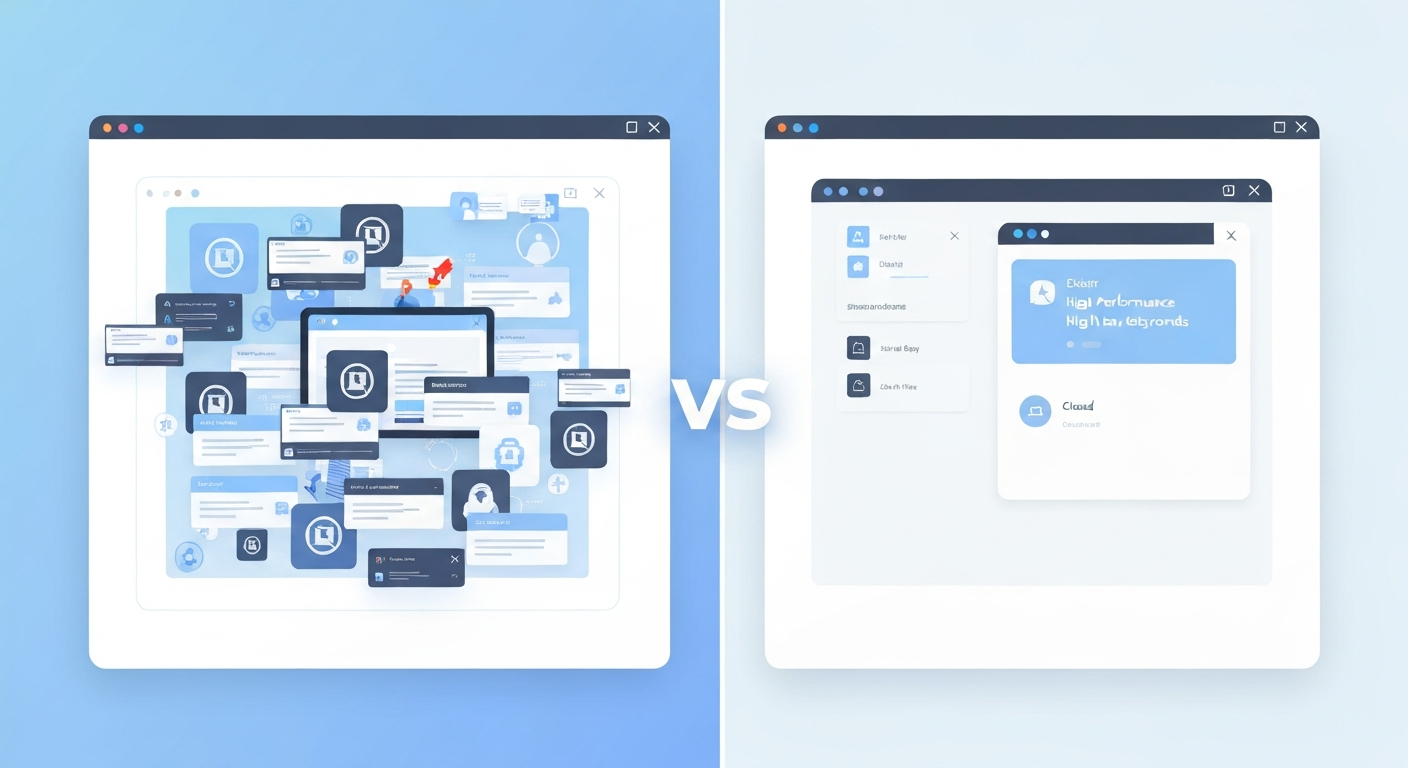
However, in a professional environment, the most important question isn’t simply “Can this be automated?” It’s “What does the automation cost in performance, maintenance, and reliability?” This myth matters because tool choices compound over time. Slow load times, brittle scripts, and permission creep quietly erode the very productivity these tools were meant to enhance.
The Core Myth vs. Reality
The assumption that every repetitive browser task needs a dedicated extension ignores the weight these tools add to your digital workspace.
| Myth | Reality | Practical Impact |
|---|---|---|
| More tools save more time | Tools add cognitive load | Higher maintenance burden |
| Extensions are lightweight | Extensions drain resources | Slower tab switching |
| Automation fixes process | Process fixes automation | Streamlined reliable data |
Myth: Every repetitive browser task needs a Chrome extension.
Reality: Not every repetition belongs in an extension. Many tasks are better handled by built-in browser features, workflow redesigns, server-side automation, or lightweight scripts. Extensions carry ongoing costs, including runtime overhead, complexity, and security risks through broad permissions. Teams often gain more by removing friction upstream than by adding automation at the browser layer.
Chrome extensions are constrained by how browsers function. They run in an environment that is constantly changing—different pages, DOM structures, and authentication states. Even an idle extension may load background logic or inject content scripts, leading to delayed page interactivity. Furthermore, extensions are often event-driven; if an internal UI changes, the extension breaks, turning your productivity tool into a maintenance liability.
A Strategic Framework for Browser Automation
Professionals should treat extensions as a last-mile solution rather than a first-line reflex. To maintain a clean and fast workflow, consider this tiered approach to automation.
1. Categorize the Repetition
Identify if the task is data transformation, navigation, or form filling. Data transformation often belongs in your backend or a spreadsheet pipeline. Navigation can frequently be solved with organized bookmarks or browser shortcuts. Form filling is often best handled by native password managers or saved profiles.
2. Leverage Built-in Features
Before visiting the Chrome Web Store, check for native solutions like reading mode, page actions, browser sync, or search operators. Built-in features are updated and sandboxed as part of the browser’s lifecycle, meaning they are far less likely to break than third-party scripts.
3. Conduct a Production Trial
If an extension is necessary, test it for reliability. Does it work across all sites you use daily? Does it fail gracefully with a clear error, or does it produce silent, incorrect outputs? Most importantly, does it require broad permissions that exceed the task’s scope?
4. Adopt Minimal Viable Automation
Start with the smallest tool that completes the job. Avoid bundling unrelated features into a single extension. Precision reduces both security risk and the complexity of debugging when a web app’s interface inevitably changes.
Common Pitfalls in Tool Selection
This myth produces predictable failures for busy professionals. Understanding these mistakes can help you maintain a leaner browser environment:
- Extension Sprawl: Installing too many tools leads to compounding performance issues and UI conflicts.
- Popularity Bias: A highly rated extension may not fit your specific privacy requirements or internal web apps.
- Permission Blindness: Treating broad access permissions as a footnote rather than a significant security risk.
- Brittle Workflows: Building complex processes around tools that break the moment a website updates its design.
- Miscalculating ROI: Counting seconds saved per action while ignoring the total cognitive overhead of managing the tool.
The key insight is simple: repetition isn’t proof that an extension is the right solution. The best professionals use extensions selectively—only when a task is truly browser-bound and built-in features cannot suffice. At EpicWebTool, Lars Erik Rydberg analyzes these tools to ensure your workflow stays fast, secure, and resilient.
Frequently Asked Questions
Why do Chrome extensions slow down my browser?
Extensions run background processes and content scripts that monitor web pages. When you have multiple extensions active, they compete for CPU and memory, which leads to laggy tab switching and delayed page loading.
When is an extension the right choice?
An extension is appropriate when a task is uniquely tied to the browser interface, cannot be automated on the server side, and requires a level of interaction that built-in browser features or bookmarks cannot provide.
How do I identify process problems vs. tool problems?
If you are repeatedly copying data between systems, it is usually a process problem that should be solved via API integrations or better templates. If the friction exists because the browser lacks a specific functional capability, it may be a tool problem.