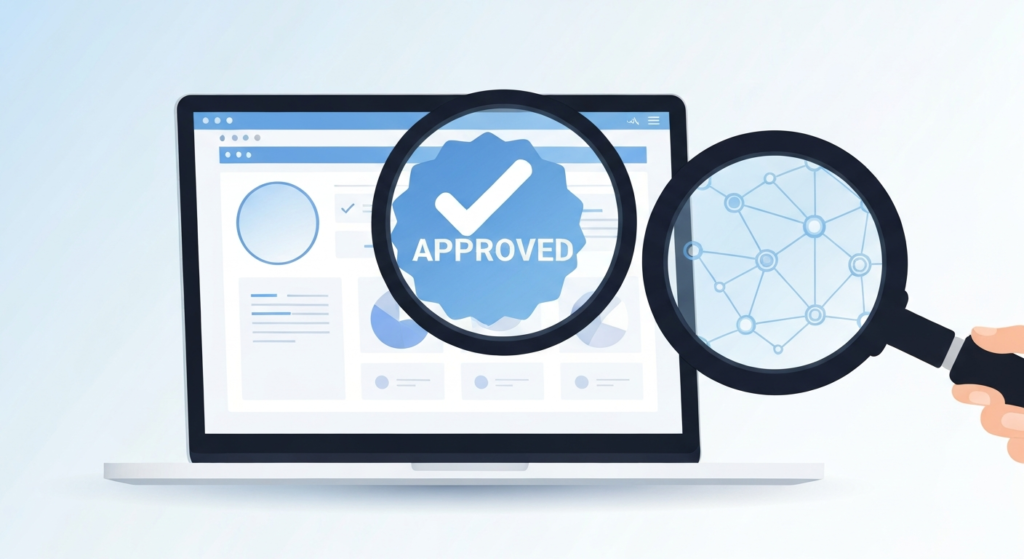
The belief is simple: if an extension has a lot of positive Chrome Web Store reviews, it must be safe. Many professionals—marketers, developers, founders, and remote workers—adopt this reasoning because it feels objective, scalable, and low-effort. In practice, however, reviews measure user satisfaction, not security engineering, and they can lag behind reality. This matters because browser extensions sit inside your workflow: they can see page content, inject code, and make requests while you are working.
Myth: Chrome Web Store Reviews Guarantee Safety
“If a tool has thousands of five-star reviews, it is verified as secure and trustworthy.”
Reality: Reviews are Not a Security Audit
A highly rated extension can still be risky due to how the Chrome Web Store and extensions operate in the real world. Ratings reflect what users noticed, not what security researchers would verify. Many harms are subtle: leaking specific data types, collecting identifiers, or altering page content under specific conditions. Furthermore, reviews often arrive immediately after installation, reacting to convenience rather than auditing permissions or long-term behavior.
Why the Myth Persists
Browser tooling is often judged through the wrong lens. The security surface of extensions is broader than user perception. An extension can provide helpful behavior while quietly reading DOM content or exfiltrating metadata. Most professionals never inspect network calls or permission scopes, so reviews cannot catch what remains invisible to the layperson.
Additionally, updates break the assumption of permanence. A high-rated extension today isn’t the same codebase it was when those reviews were written. Internal changes can re-route requests or add analytics long after the “great review’ badge appears. Finally, popularity often rewards convenience over correctness; hype can easily outpace engineering discipline.
| Focus Area | The Myth | The Reality | Practical Impact |
|---|---|---|---|
| Star Ratings | Security Seal | UX Sentiment | False Confidence |
| Updates | Safe Forever | Code Changes | Stale Trust |
| Permissions | Verified | Often Ignored | Data Exposure |
Professional Workflow Perspective
Professionals should treat extensions as mini-integrations rather than simple apps. Evaluate them like a third-party library by following these steps:
- Permission Audit: Check site access and data reading requirements.
- Recency Check: Verify if the extension is actively maintained.
- Controlled Testing: Use a separate Chrome profile to watch network activity.
- Transparency Signals: Look for clear documentation on data collection.
- Least Privilege: Only install tools that target specific, necessary domains.
Common Mistakes to Avoid
Believing the myth leads to predictable missteps that compromise your digital workspace:
- Installing by Popularity: Equating high download counts with technical safety.
- Confusing UI with Quality: Assuming a polished interface means a secure backend.
- Ignoring Update Risk: Failing to re-evaluate tools when permissions change.
- Building Fragile Workflows: Using "black-box" tools that you cannot debug or audit.
- Performance Decay: Adding unnecessary extensions that increase runtime overhead and security surface area.
Conclusion: Reliability Over Reputation
Chrome Web Store reviews are a signal of user experience, but they are not a security stamp. Real protection comes from evaluating permission scopes, monitoring update behavior, and adhering to least-privilege design. In professional work, productivity isn’t just about speed; it is about reliable, controlled, and secure execution. EpicWebTool analyzes these tools to help you replace intuition with evidence, ensuring your browser remains both fast and trustworthy.
Frequently Asked Questions
Can a 5-star extension be malicious?
Yes. Malicious extensions often gain high ratings by offering a free, useful feature while secretly collecting data or inject ads. High ratings only reflect user satisfaction with the visible features.
Do Chrome Web Store moderators check every update?
While Google uses automated scanners and some manual reviews, they cannot catch every subtle change in data handling or external network requests introduced in every update.
How do I check an extension's permissions?
You can view permissions before installing on the "Privacy practices" tab in the Chrome Web Store, or after installation by right-clicking the extension and selecting "Manage Extensions."